LinkedIn Sales Navigator for Salesforce: What Syncs in 2027
Connecting LinkedIn Sales Navigator to Salesforce needs the Advanced Plus plan, not Core or Advanced. Here is what imports, what writes back, and the current steps to set it up.

Need accounts to run this playbook? Enquire Now
LinkedIn Sales Navigator for Salesforce only works on one plan: Advanced Plus. Core and Advanced do not include CRM integration, and Advanced Plus is quote-only, so there is no self-serve price. Once it is connected, your Salesforce leads, contacts and accounts import into Sales Navigator, and your activity (messages, InMails, notes, calls) writes back to Salesforce. (Checked November 2026.)
Most of the setup guides that rank for this topic get the plan requirement wrong, and few of them lay out what actually moves between the two tools. Below is the current answer from LinkedIn's own help pages: which plan you need, what syncs in and what writes back, and the 2027 setup flow.
Which plan do you need? Advanced Plus only
You need Sales Navigator Advanced Plus. LinkedIn states it plainly: "Integration between Sales Navigator and your CRM is only available for Sales Navigator Advanced Plus users." The admin setup guide repeats it, listing the Advanced Plus license as required for CRM Sync, Embedded Profiles and data validation.
Advanced Plus is quote-only. LinkedIn does not publish a price for it; the plan page says "Request demo for pricing" and notes the cost is set by your team size, CRM integration and onboarding needs. Treat any single dollar figure you see quoted elsewhere as a guess.
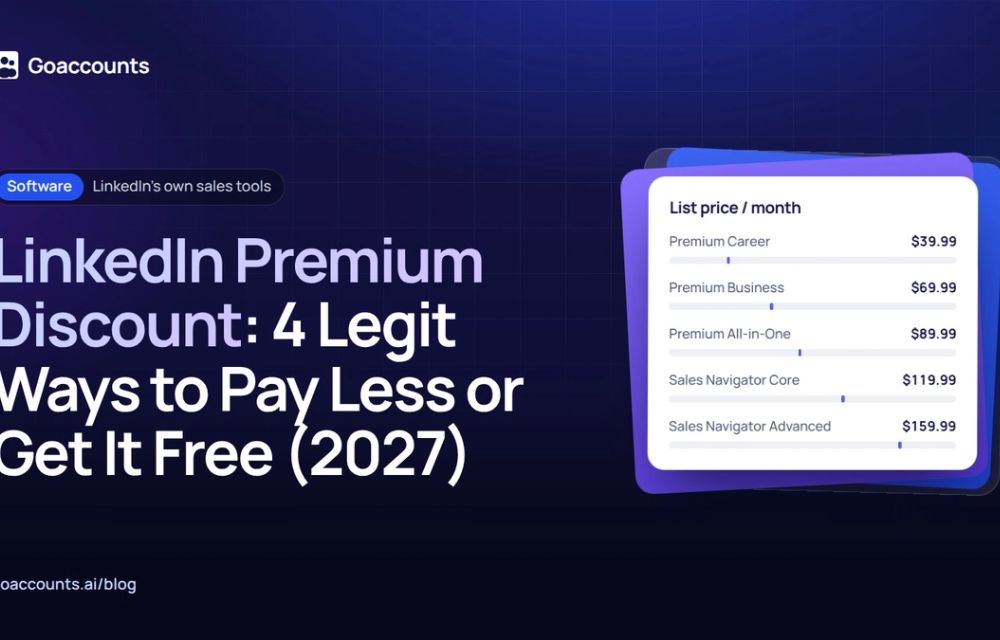
For context, the two cheaper tiers do carry public prices, and neither includes CRM sync:
- Core: $119.99 per month.
- Advanced: $159.99 per month.
If a guide tells you the integration runs on Core, Advanced, "Team" or "Professional", it is out of date. CRM sync sits on Advanced Plus and nowhere else.
A question we hear from clients who rent accounts from us: does the Sales Navigator add-on sync to Salesforce? The add-on we offer on a rented account is Sales Navigator Advanced, not Advanced Plus, so the answer is no. CRM sync lives on Advanced Plus only, a separate, quote-only tier. If Salesforce sync is the goal, that is the tier to ask LinkedIn about.
What syncs with LinkedIn Sales Navigator for Salesforce, and what doesn't
Three things get lumped together as "connecting Sales Navigator to Salesforce": embedded profiles, CRM sync in, and activity writeback out. The sync part is the second and third. Here is what moves, from LinkedIn's admin guide:
| Direction | What moves |
|---|---|
| Imports in (Salesforce to Sales Navigator) | Leads, contacts and accounts your admin chooses to auto-save. The import runs about every 12 hours through the Bulk API. |
| Writes back (Sales Navigator to Salesforce) | Messages and InMails, notes, calls, Smart Links, create contacts, update contacts, create leads, update leads, and connection requests. Writeback is on by default once CRM sync is configured. |
| Does not sync | It does not raise any LinkedIn sending limit. It is not instant two-way mirroring; the import side runs on a 12-hour cycle. Embedded profiles on Salesforce Classic and full data validation need the managed app, not native integration alone. |
Embedded profiles, the LinkedIn panel shown on a lead, contact or account record, are a separate feature from CRM sync; native integration adds them to Lightning pages, and the managed app also adds them to Salesforce Classic.
How to connect Sales Navigator to Salesforce in 2027
What you need first: a Sales Navigator Advanced Plus license, Salesforce admin access, and a Salesforce edition that supports the integration. Supported editions are Enterprise, Performance, Unlimited and Developer. Professional works only if API Access and Chatter are turned on, which may add a Salesforce fee. LinkedIn also recommends a dedicated integration user rather than a personal admin account.
What you will have at the end: Salesforce records importing into Sales Navigator, activity writing back to Salesforce, and embedded profiles on your records.
Step 1: Decide which LinkedIn profile this runs on
CRM sync needs a Sales Navigator Advanced Plus seat no matter whose profile it sits on, so settle which account carries it before you touch Salesforce. If you'd rather not risk your own profile, sign up at GoAccounts and get aged, ID-verified LinkedIn accounts in 3 to 10 days, depending on how many accounts you need. Renting a seat does not add Salesforce sync by itself; you still need Advanced Plus and the admin steps below, and they are the same on any account.
Step 2: Work through the admin setup flow
The admin flow has nine steps:
- Confirm prerequisites: the Advanced Plus license, Salesforce admin access, and ideally a dedicated integration user.
- Choose your install type: the AppExchange managed package (recommended, and required for embedded profiles, data validation and full CRM sync parity) or native integration.
- Install the app. Lightning is recommended; the managed package is listed as "Sales Navigator for Salesforce."
- Configure components and data validation (managed package only).
- Assign the "LinkedIn Sales Navigator Standard User" permission set to your users.
- Connect Salesforce: the admin signs in with the integration user's credentials over OAuth. Sales Navigator then ingests CRM data about every 12 hours through the Bulk API.
- Turn on data validation.
- Turn on activity writeback. Each user authenticates with Salesforce on their first writeback and is prompted to re-authenticate every 90 days.
- Verify and test. Connect a Salesforce sandbox first if you can, run a small test set of around 10 contacts, then roll out to production.
One setup detail that trips people up: Salesforce My Domain must be turned on before the Lightning install. Do that before step 3.
How often does it sync, and how are embedded profiles different?
The import side runs about every 12 hours through the Bulk API, so Salesforce changes show up in Sales Navigator within that window, not instantly. Writeback lands shortly after the activity happens. LinkedIn's own pages give conflicting figures for writeback timing, so treat it as "soon after" rather than a fixed number.
Embedded profiles are not the same as CRM sync. An embedded profile is the LinkedIn panel on a Salesforce record. CRM sync is the data moving in and out. You can see embedded profiles through native integration on Lightning pages, while the managed app is what adds them to Salesforce Classic and turns on full data validation. If your plan is Advanced Plus, you get both; the managed package simply covers more surface area.
What CRM sync will not do: raise your LinkedIn limits
Connecting Sales Navigator to Salesforce keeps your CRM current. It does nothing for how much you can send on LinkedIn. Sales Navigator raises your monthly profile-search and profile-view allowance and adds lead filters and InMails, but it does not raise the weekly connection and invitation limit, which applies to every member. No tier does, whether Core, Advanced or Advanced Plus. CRM sync moves data. It does not add reach.
So if your real bottleneck is volume rather than data hygiene, a bigger plan will not fix it. That is a seats and profiles question. Keeping Salesforce clean is a different problem. Teams that need to reach more people usually scale outreach across more than one account rather than push a single profile past its limit.
Common setup problems and how to fix them
- "The integration option is greyed out or missing." Almost always the plan. CRM sync is Advanced Plus only; Core and Advanced will not show it. Confirm the seat is Advanced Plus before anything else.
- The Lightning install fails. Check that My Domain is turned on. LinkedIn requires it before the Lightning install.
- Embedded profiles show in Lightning but not Classic. Native integration covers Lightning only. Install the AppExchange managed package to get embedded profiles in Classic and full data validation.
- Writeback stops after a while. Each user re-authenticates with Salesforce every 90 days. If a user's activity stops logging, have them sign in again.
- Professional edition will not connect. Turn on API Access and Chatter, and expect a possible Salesforce fee. Or move to a supported edition (Enterprise, Performance, Unlimited or Developer).
When to get help: if your seat is Advanced Plus, My Domain is on, and the managed package still will not connect, that is a case for LinkedIn Sales Navigator support or your Salesforce admin, not a settings guess. Testing in a sandbox first catches most of these before they hit production.
FAQ
What plan do I need for Sales Navigator and Salesforce? Sales Navigator Advanced Plus. Core and Advanced do not include CRM integration, and Advanced Plus is quote-only.
Which Salesforce editions work? Enterprise, Performance, Unlimited and Developer. Professional works only with API Access and Chatter turned on, which may add a Salesforce fee.
What syncs between the two? Leads, contacts and accounts import into Sales Navigator. Messages, InMails, notes, calls, Smart Links, contact and lead creation and updates, and connection requests write back to Salesforce.
How often does it sync? The import runs about every 12 hours through the Bulk API. Writeback lands soon after the activity, with no single fixed figure from LinkedIn.
Does CRM sync let me send more on LinkedIn? No. No Sales Navigator tier raises the weekly connection and invitation limit. Sync keeps your CRM current; it does not add reach.
Before you go
Connecting Sales Navigator to Salesforce is a data job: it keeps your CRM current and logs your activity. It does not change how much you can send. If reach is the real limit, that is a seats question, and teams running outbound at volume add more profiles rather than push one harder. Using separate accounts also keeps your own profile out of the firing line if one gets restricted, and it is worth knowing the difference between real and fabricated accounts before you decide how to run your seats.
Researched and drafted with AI assistance from our team's notes, and checked against LinkedIn's own help and compare-plans pages in November 2026 by the GoAccounts Team.