How to Use LinkedIn Boolean Search: 5 Operators and 10 Strings to Copy
LinkedIn Boolean search lets you combine five operators in the search bar to pull tighter prospect lists. Here are the five operators, the order LinkedIn reads them in, the rules the copy-paste lists get wrong, and ten strings to copy.

Need accounts to run this playbook? Enquire Now
LinkedIn Boolean search lets you combine five operators in the search bar to pull up exactly the people you want: quotation marks for an exact phrase, plus AND, OR and NOT typed in capitals, and parentheses to group them. LinkedIn reads them in one order: quotes, then parentheses, then NOT, then AND, then OR. There are no wildcards, and Sales Navigator caps one query at 15 operators.
Everything below is checked against LinkedIn's own help pages, read November 2026.
What is LinkedIn Boolean search?
Boolean search is the way you combine search terms with operators instead of typing one plain phrase. On LinkedIn you type the string straight into the main search bar at the top of LinkedIn.com, or into the keyword field in Sales Navigator and Recruiter. The operators tell LinkedIn which terms to require, which to exclude, and which to treat as alternatives, so one search can stand in for a dozen. Used well, it turns a vague people search into a tight prospect list.
The 5 LinkedIn Boolean operators
LinkedIn documents five ways to build a Boolean query. One rule sits above all of them: when you use AND, OR and NOT, you have to type them in capital letters, or the search will not read them as operators.
| Operator | What it does | LinkedIn's own example |
|---|---|---|
| " " Quotes | Match an exact phrase | "product manager" |
| AND | Require every term, narrows results | accountant AND finance AND CPA |
| OR | Match any of the terms, broadens results | sales OR marketing OR advertising |
| NOT | Exclude a term, narrows results | programmer NOT manager |
| ( ) Parentheses | Group terms to build longer logic | VP NOT (assistant OR SVP) |
Quotes are useful for multi-word titles like "product manager", though short stop words such as "by", "in" and "with" are ignored even inside the quotation marks. Parentheses are the only grouping symbols LinkedIn recognises.
The order LinkedIn reads your query (and the mistake everyone makes)
LinkedIn evaluates every query in one fixed order: quotes first, then parentheses, then NOT, then AND, then OR last. That order matters, because AND is read before OR, and that trips up almost every copy-paste string.
Take this query:
"product manager" OR "product owner" AND SaaS
You probably meant "either title, but only at SaaS companies". LinkedIn reads it as "product manager" OR ("product owner" AND SaaS), because AND binds tighter than OR. So it returns every product manager anywhere, plus product owners at SaaS firms, which is not what you wanted.
The fix is parentheses, which are read before AND and OR:
("product manager" OR "product owner") AND SaaS
Now LinkedIn groups the two titles first, then requires SaaS across both. Any time you mix OR and AND in one search, wrap the OR group in parentheses.
What doesn't work: wildcards, brackets and plus or minus signs
A few things people expect from other search engines do not work on LinkedIn:
- No wildcards. LinkedIn does not support asterisks (
*) or other wildcard characters, so you cannot stem a word to catch its variants. - Only parentheses group. Braces
{ }, square brackets[ ]and angle brackets< >are treated as ordinary characters. They do not group anything. - Use AND and NOT, not
+and-. The plus and minus signs are not officially supported and may only appear to work. Type AND in place of+and NOT in place of-. - Short words are ignored. Stop words such as "by", "in" and "with" are dropped, even inside a quoted phrase.
How many operators can you use? Free vs Sales Navigator vs Recruiter
This depends on which LinkedIn product you are in, and most guides get it wrong by stating one flat number.
- Sales Navigator: a maximum of 15 Boolean operators in a single query.
- Recruiter and Recruiter Lite: no operator limit, as they are built for heavy search users.
- Free LinkedIn: there is a limit, but LinkedIn publishes no number for it. LinkedIn says it caps operators to keep its free search running quickly.
So "LinkedIn limits you to 15 operators" is only true inside Sales Navigator. All ten strings below stay well under that cap, so they run anywhere. These limits come from LinkedIn's own query-limitations help page, checked November 2026. That page is older than the main Boolean page, so re-check it if the exact number matters to you.
10 LinkedIn Boolean search strings to copy
These are our own examples, built to follow LinkedIn's rules: capitals for AND, OR and NOT, quotes around multi-word titles, and parentheses around every OR group. Each one stays under the 15-operator Sales Navigator cap, so it runs anywhere. Copy one, then swap the titles and industries for your own target.
| String | What it targets |
|---|---|
| ("VP of Sales" OR "Head of Sales" OR "Sales Director") AND SaaS NOT (assistant OR junior OR intern) | Senior sales owners at SaaS firms, minus junior and assistant noise |
| (founder OR "co-founder" OR CEO) AND ("lead generation" OR "demand generation") AND agency | Agency founders and CEOs in the lead-gen space |
| ("revenue operations" OR "sales operations" OR RevOps) AND (director OR "head of" OR VP) | RevOps and sales-ops leaders |
| ("marketing director" OR CMO OR "VP of Marketing") NOT (freelance OR consultant OR coach OR student) | In-house marketing leaders, minus freelancers and coaches |
| (CEO OR CTO OR founder) AND (fintech OR "financial technology") NOT recruiter | Fintech decision-makers, minus recruiters |
| ("software engineer" OR "backend developer" OR "full stack") AND (Python OR Golang OR Java) NOT (manager OR recruiter) | Hands-on engineers with a named stack, for recruiting |
| ("procurement manager" OR "head of procurement" OR "purchasing manager") AND (manufacturing OR industrial) | Procurement buyers in manufacturing |
| ("head of growth" OR "growth lead" OR "growth marketing") AND B2B NOT (agency OR freelance) | In-house growth leaders at B2B companies |
| ("account executive" OR "sales executive" OR AE) AND (London OR "United Kingdom") NOT director | UK-based individual-contributor account executives |
| ("customer success" OR "head of CS" OR "VP Customer Success") NOT (support OR representative OR intern) | Customer-success leaders, minus frontline support reps |
Two patterns are worth copying. String one broadens with an OR group of titles, then clears the noise with NOT. It also wraps that title group in parentheses for the OR and AND reason above, so the AND for SaaS applies to both titles, not just the last one.
How to build your own Boolean string, step by step
At the end you will have one saved search that returns a tight, repeatable list of good-fit people. Before you start, get clear on the role: the titles they use, the industry, the seniority, and the words that signal a bad match. Then run the loop our team runs.
Step 1: Pick the account you'll run these searches from
Run volume search and outreach from an account you are willing to put at risk, not your main personal profile. If you'd rather not risk your own profile, sign up at GoAccounts and get aged, ID-verified LinkedIn accounts in 3 to 10 days, depending on how many accounts you need.
Step 2: Broaden with OR groups of job titles
List every title your target actually uses and join them with OR inside parentheses: ("VP of Sales" OR "Head of Sales" OR "Sales Director"). The result is wide on purpose. You want to catch everyone before you start cutting.
Step 3: Narrow with AND for industry and seniority
Add the non-negotiables with AND: an industry, a seniority, a region. For example, (...) AND SaaS. Each AND term shrinks the list to people who match on every count.
Step 4: Cut the noise with NOT
Look at who you do not want and exclude them: NOT (assistant OR junior OR intern). NOT is the fastest way to clear out the obvious bad matches before you even read the results.
Step 5: Group the logic with parentheses
Wrap every OR group in parentheses so the AND and NOT apply the way you intend. This is where the OR and AND trap from earlier bites if you skip it.
Step 6: Run it, scan page one, then save
Run the search and read the first page. For every bad-fit profile that slipped through, add one more NOT term, then run it again. Two or three passes usually gets a clean list. In practice our team paces a list like this against roughly 100 to 150 connection requests per account per week , which is our own working guide rather than a number LinkedIn publishes. When the first page looks right, save the search so you can re-run it as new people match.
One more thing a Boolean string can't do: contact people for you
A sharp Boolean string solves targeting. It finds more good-fit people, faster. It does nothing about capacity. LinkedIn's weekly connection limit applies to every member and no plan removes it, so there is a ceiling on how many of those people one account can reach in a week. Sales Navigator raises the commercial-use search limit, the cap that throttles heavy searching on a free account, so you can run more Boolean searches before you hit it. It does not lift the weekly connection limit.
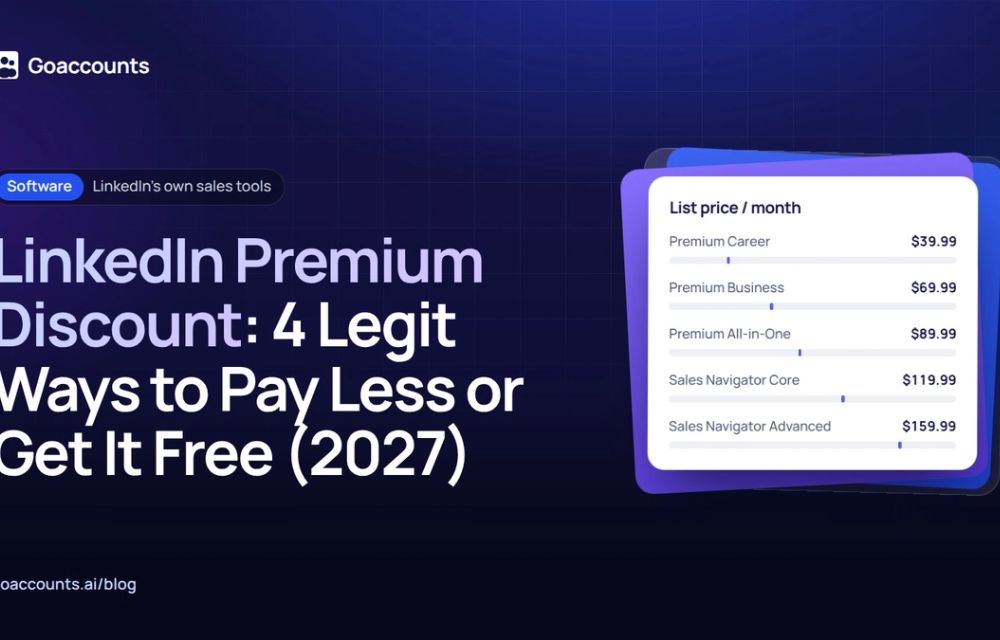
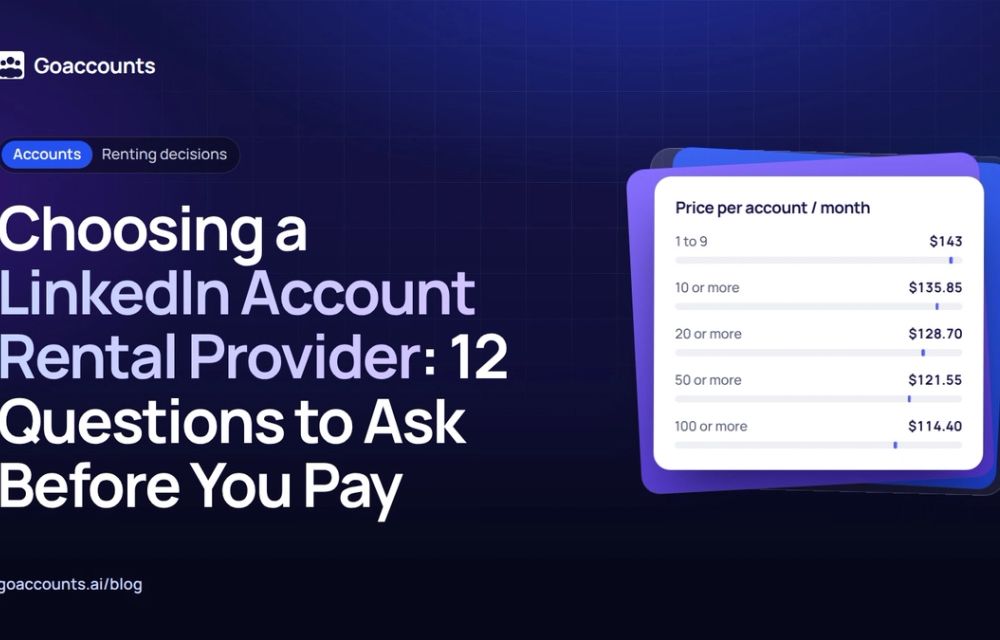
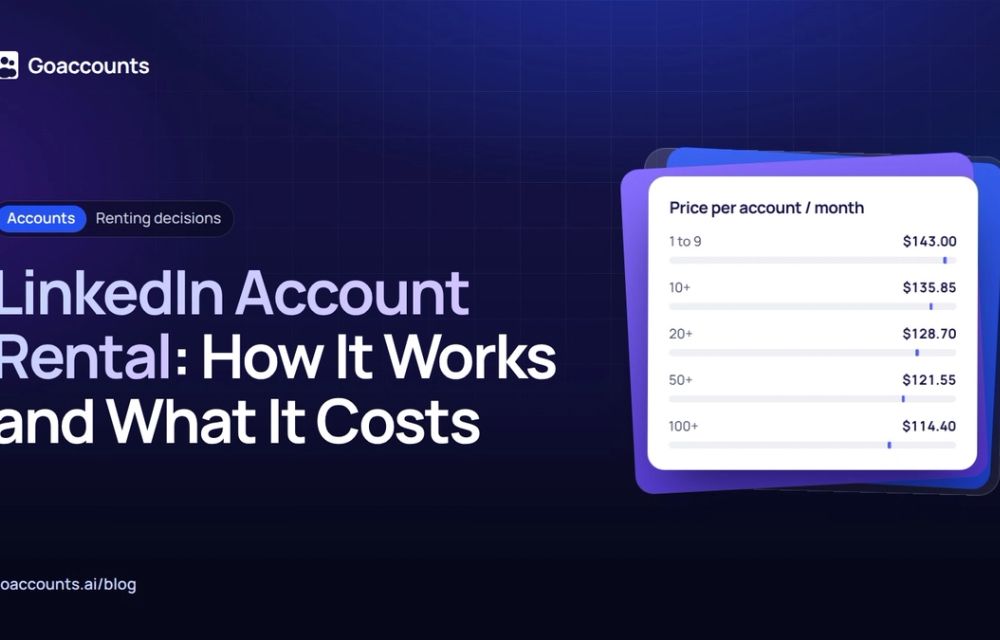
So a tighter list often surfaces more qualified people than one profile can safely contact. At that point the fix is more seats, not a cleverer search. GoAccounts rents LinkedIn accounts from $143 per account a month, month to month, each with its own dedicated static ISP proxy, a GoLogin browser profile and 500 or more connections. You can add a Sales Navigator Advanced seat for $40 a month per account, against LinkedIn's list price of $159.99, so an extra fully equipped seat runs from about $183 a month all in. If reach is your real bottleneck, see the add-ons on the pricing page.
For more on running at volume, see scaling outreach across more than one account, real vs warmed accounts, and what to do if an account is restricted. Our video academy walks through the setup.
Frequently asked questions
What are the 5 LinkedIn Boolean operators? Quotation marks for an exact phrase, plus AND, OR, NOT and parentheses. AND requires every term, OR matches any of them, NOT excludes a term, and parentheses group terms so you can build longer logic. Type AND, OR and NOT in capitals.
Do LinkedIn Boolean operators have to be capitalised? Yes. AND, OR and NOT only work as operators when typed in uppercase. In lowercase, LinkedIn treats them as ordinary search words, so "and", "or" and "not" will not filter anything.
Does LinkedIn support wildcard (asterisk) search? No. LinkedIn does not support wildcards such as the asterisk (*). There is no way to stem a word to catch its variants, so spell out each form you want and join them with OR.
How many Boolean operators can you use in Sales Navigator? Sales Navigator allows a maximum of 15 operators in a single query. Recruiter and Recruiter Lite have no operator limit. Free LinkedIn has a limit too, but LinkedIn does not publish a number for it.
Why is my Boolean search returning the wrong people? Usually the OR and AND order. LinkedIn reads AND before OR, so an un-grouped OR list gets the AND applied to only its last term. Wrap each OR group in parentheses to fix it.
Researched and drafted with AI assistance from our team's notes, and checked against LinkedIn's own Boolean search and query-limitations help pages on 2026-11-17 by the GoAccounts Team.