LinkedIn Outreach Strategy for 2027: The Full Stack That Scales
A LinkedIn outreach strategy that scales past one account is a stack, not a better opener. Map the four layers: accounts, proxies, browser profiles and tools.

Need accounts to run this playbook? Enquire Now
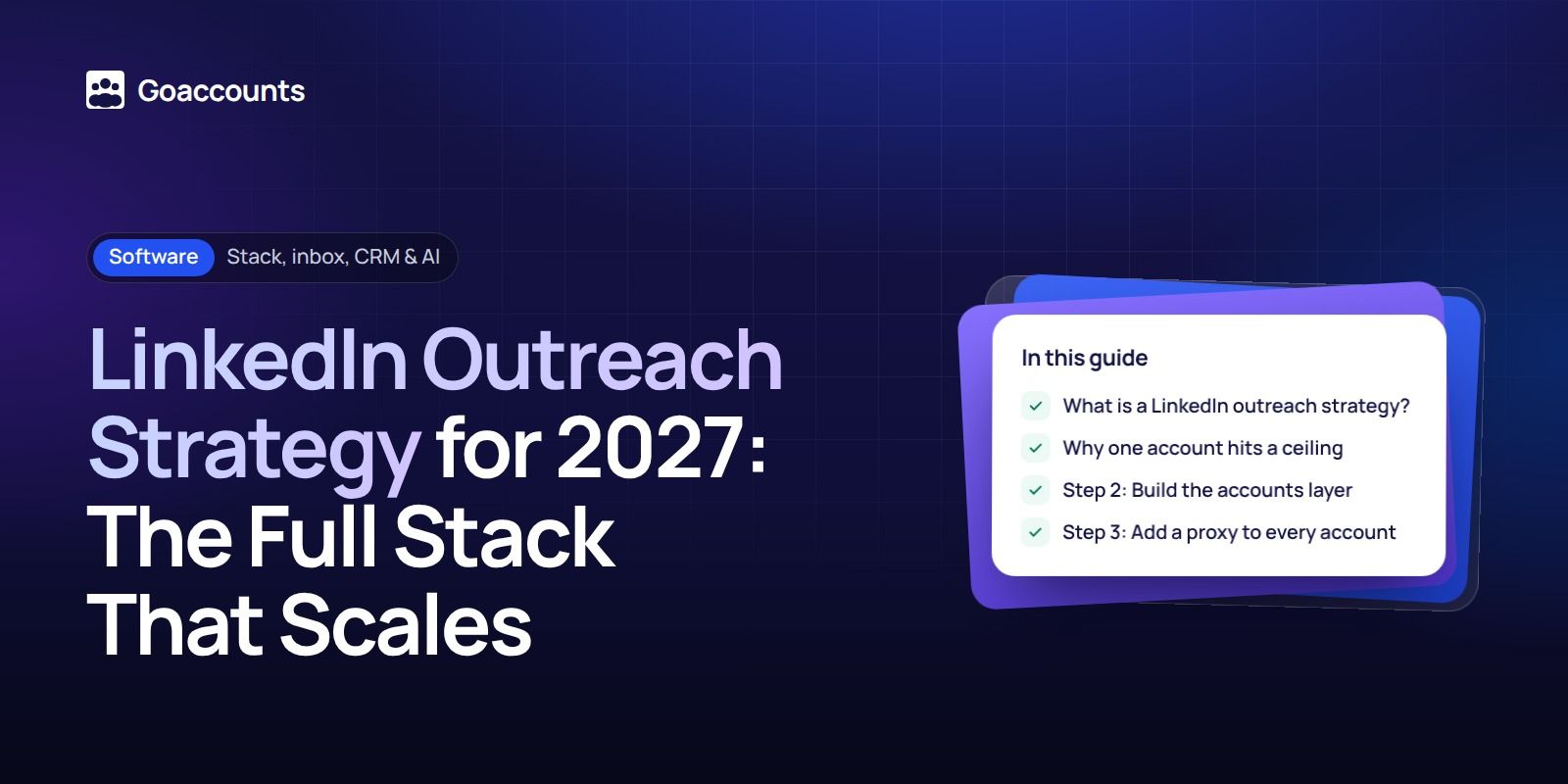
A LinkedIn outreach strategy that scales past one account runs on a stack: four layers you build in order, accounts, proxies, browser profiles and sending tools, with LinkedIn's limits and your messaging riding on top. Get the layers right and volume stops getting your accounts restricted. This guide maps the whole stack for agencies, B2B sales teams and recruiters who have hit the single-profile ceiling.
What is a LinkedIn outreach strategy?
A LinkedIn outreach strategy is the full system for finding the right people, sending connection requests and messages, and following up, plus the infrastructure that lets you do it at volume without putting one profile at risk. Most guides cover the messaging. The part that scales is the infrastructure underneath it.
The order is simple: set your goals, build a target list, write the message, then stand up the infrastructure that lets you run it across more than one account. By the end of this guide you will have a setup you can run across several accounts at once, each on its own IP and browser profile, connected to a sending tool, paced inside LinkedIn's limits. What you need first: a clear target list, a budget for each layer and a decision about whose profiles carry the risk.
Why one account hits a ceiling
One profile can only do so much before LinkedIn slows it down. Our own operator guidance is 100 to 150 connection requests per account per week . Push past that and you raise the odds of a restriction. When you need more volume, you add senders. You do not overload one account.
LinkedIn does not publish a weekly invitation number, whatever the vendor blogs tell you. When you hit an unpublished limit, sending is restricted, and LinkedIn says that restriction typically lasts about a week. So the 100 to 150 figure is ours, not LinkedIn's, and it is a pace we run to, not a line LinkedIn draws. The decision point is the same either way: when one account is at its ceiling, add another sender rather than pushing the first one harder.
Step 1: Decide whose profile takes the risk
If you'd rather not risk your own profile, sign up at GoAccounts and get aged, ID-verified LinkedIn accounts in 3 to 10 days, depending on how many accounts you need.
Every strategy that scales past one account starts with a choice. You can run outreach from your own profile and your team's real profiles, or from separate accounts kept apart from your personal network. Running it from your own profile keeps costs down but puts your real network and reputation on the line if an account gets restricted. Separate accounts cost more and contain that risk. Make this call first, because it decides how the rest of the stack is built.
Step 2: Build the accounts layer
The accounts are the base of the stack. You have two ways to build this layer: your team's own real profiles, one person per account, with two-factor turned on and credentials never shared, or managed accounts you rent so your own profiles stay out of it.
LinkedIn's User Agreement asks for one account in your real name, says not to share your account, and says not to rent, lease or sell access to it. Running or renting extra accounts sits outside those terms and carries platform risk. No setup removes that risk, and anyone who promises an account that cannot be restricted is guessing.
Here is the order we build a working account in, every time : start with a warmed account that already has 500 or more real connections, match it to a dedicated static ISP proxy, load it into its own GoLogin browser profile with two-factor through a portal, then connect it to the client's sending tool and check it runs before handover. That order, account then proxy then browser then tool, is the stack the rest of this guide builds.
On price, renting a managed account runs roughly $45 to $210 per account per month. Buying one outright runs roughly $225 to $630 one time, often plus around $230 for ID verification, and usually with no proxy. For the detail on the rental route, see renting a LinkedIn account; for running several at once, see scaling LinkedIn outbound with multiple accounts.
Step 3: Add a proxy to every account
Each account needs its own IP address. A proxy routes an account's traffic through a separate internet line, so two accounts never share one address and look like one person. Expected result: one dedicated IP per account, matched to the account's location.
There are two types worth knowing. A residential proxy routes through a real consumer internet line; a static ISP proxy is an IP registered to an internet provider but hosted on a server. Either way each account gets its own dedicated address that looks like an ordinary connection. A datacenter proxy uses a plain server IP: cheaper, and easier to flag. For LinkedIn accounts, a static ISP proxy per account is the safer choice. On price, residential or ISP proxies run roughly $1 to $7 per GB, or a few dollars a month for a static ISP line; datacenter proxies start lower, from roughly $0.15 to $0.50 per GB.
Step 4: Give each account its own browser profile
A browser profile keeps each account's cookies, storage and browser fingerprint separate, so your accounts do not look like one person switching between them. Expected result: one isolated profile per account.
Sites can recognise a browser by combining details like its version, timezone, language, fonts and screen size. Run two accounts in the same browser and they share those details, which ties them together. A separate profile per account keeps each one distinct. Several browser-profile tools have a free tier; paid plans start around $6 to $17 a month for a handful of profiles. We give each account its own GoLogin profile so the fingerprint is unique to it.
Step 5: Pick the sending tool
The sending tool runs your requests and messages on a schedule instead of by hand. The categories are a multi-sender that runs many accounts from one place, a cloud tool that runs while your machine is off, and a desktop tool that runs on your computer. Expected result: each account connected to a tool that paces its sending.
LinkedIn's Help Center says it does not permit third-party software, including bots, plug-ins and extensions, and that accounts can be restricted and tools can stop working without notice. Automation carries risk. Pace it, keep the volume inside the ceiling from Step 2, and do not treat any tool as safe. On price, sending tools start around $9 to $99 a month per account; flat-fee plans that cover many accounts are priced separately and higher.
Step 6: Work inside LinkedIn's limits
LinkedIn publishes far fewer numbers than the vendor guides claim. Know the ones it does publish and stop guessing at the ones it does not.
- Invitations: no published weekly number. When you hit the limit, sending is restricted, and LinkedIn says that typically lasts about a week.
- Personalized notes: a free account can add a personalized note to up to three connection requests a month, up to 200 characters each. Premium lifts that note limit.
- Search: LinkedIn publishes no monthly search number either. It says it cannot show how many searches you have left and will not lift the limit on request, and it resets at the start of each month. Premium Business, Sales Navigator and Recruiter Lite raise it.
- InMail: monthly credits run by plan, Premium Career 5, Premium Business 15, Sales Navigator 50 and Recruiter Lite 30. A credit comes back if the recipient accepts, declines or responds, within 90 days.
On the messaging itself, LinkedIn's own recruiter data found InMails under 400 characters got responses above average, and individually sent messages did better than bulk ones. Keep notes short and write them one at a time.
Step 7: Warm up before you push volume
A fresh or cold account should ramp, not open at full volume. Skipping warm-up is the most common way a new sender gets restricted early . Accounts that arrive already warmed can start sooner; accounts you build yourself need the ramp. Expected result: an account that reaches full pace without tripping a limit in week one.
One common ramp, from a sending-tool vendor and not a LinkedIn standard, is to start around five requests a day and build toward 20 to 30, raising the number gradually. Treat those figures as illustrative: climb to volume, do not start at it.
What the whole stack costs
Priced layer by layer, a do-it-yourself stack adds up like this. Each figure is a range, not a quote.
| Layer | Do-it-yourself price band |
|---|---|
| Account (rented) | $45 to $210 per account / month |
| Proxy (static ISP) | $1 to $7 per GB, or a few dollars a month |
| Browser profile | free to about $17 / month |
| Sending tool | $9 to $99 per account / month |
| Warm-up | your own time |
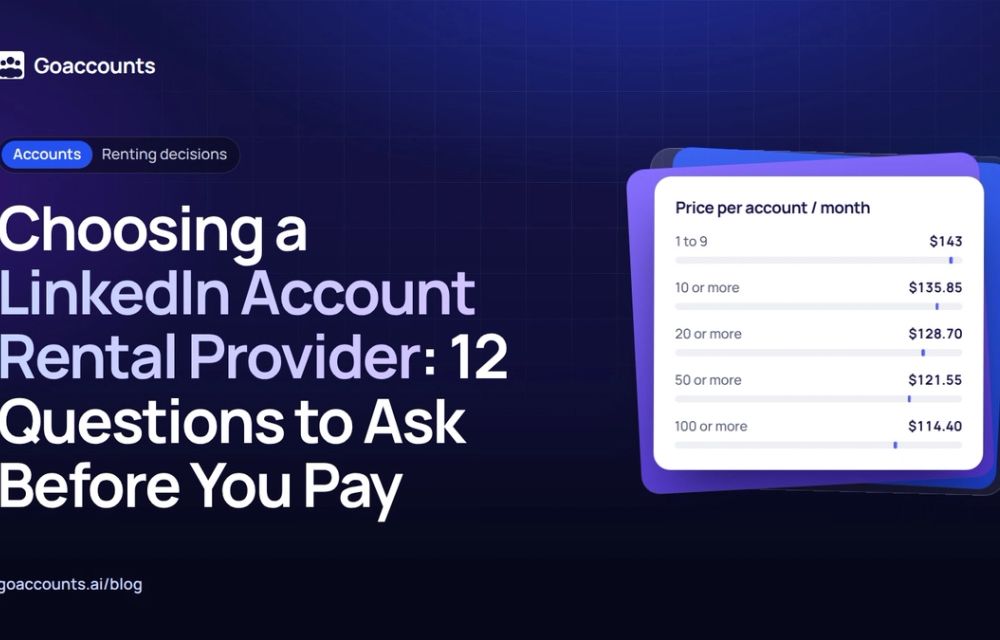
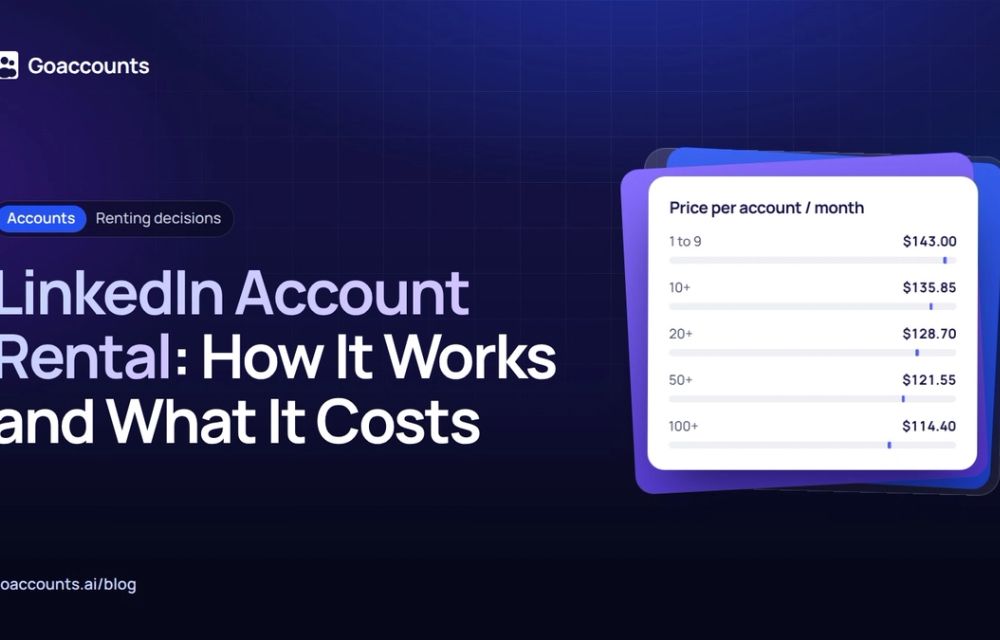
A managed account bundles the proxy, browser profile and warm-up into one price. GoAccounts rents accounts from $143 per account per month, with the static ISP proxy, GoLogin profile and warm-up included, and automatic volume discounts as you add accounts. You can add Sales Navigator Advanced for $40 a month or Recruiter Lite for $98 a month per account. One account with the Sales Navigator add-on comes to $183 a month, all in [inference, verified inputs]. A restricted account is recovered within seven days or replaced, and the next bill is reduced for the downtime. If that happens, here is what to do if an account is restricted.
Common errors and how to fix them
- Running two accounts on one IP or in one browser. Give each account its own proxy and its own browser profile.
- Starting a new account at full volume. Warm it up first and ramp the numbers.
- Treating "100 a week" as a LinkedIn rule. It is a vendor guess. Pace to your own ceiling and watch the results.
- Pushing one account harder when it slows down. Add a sender instead.
- Hitting a restriction and carrying on. Stop sending from that account and follow LinkedIn's recovery steps before you touch it again.
FAQ
Can I run multiple LinkedIn accounts without getting restricted? There is no setup that removes the risk. You lower it by giving each account its own IP and browser profile, keeping one person per account and pacing the volume.
Do I need a proxy for a second account? Yes. A dedicated static ISP proxy per account keeps the two accounts off the same IP, which is what ties them together otherwise.
Is LinkedIn outreach automation against the rules? LinkedIn's Help Center says it does not permit third-party software, and it can restrict accounts that use it. Any automation carries that risk, so pace it and do not rely on a tool staying available.
How many connection requests can I send a week? LinkedIn publishes no weekly number. Our own guidance is 100 to 150 per account per week, treated as a pace to run to, not a line LinkedIn draws.
You have two ways to run this: build the stack yourself, layer by layer, or rent accounts with the stack already assembled. Either way the strategy is the same four layers plus the limits and the messaging on top. If you want to go deeper on the setup, work through our video course.
Researched and drafted with AI assistance from our team's notes, and checked against LinkedIn's User Agreement and Help Center on 2026-11-16 by the GoAccounts Team.