LinkedIn InMail Credits by Plan in 2027 (and How to Get Them Back)
How many InMail credits each LinkedIn plan gives in 2027, the cap on how many you can bank, when they renew, and the 90-day rule that gets a spent credit back.

Need accounts to run this playbook? Enquire Now
LinkedIn InMail credits come per plan, per month: Premium Career 5, Premium Business 15, Premium All-in-One 30, Sales Navigator 50, and Recruiter Lite 30. Each plan caps how many you can bank. A spent credit comes back when the recipient accepts, declines or replies within 90 days. Counts checked November 2026, straight from LinkedIn's own help page.
Most guides state one plan's number and get the renewal and roll-over rules wrong. This page gives the full per-plan table, the cap on each, the correct refresh timing, and what "getting them back" actually means.
LinkedIn InMail credits by plan: the full table
Here is how many InMail credits each LinkedIn plan gives per month, and the most you can bank on each plan.
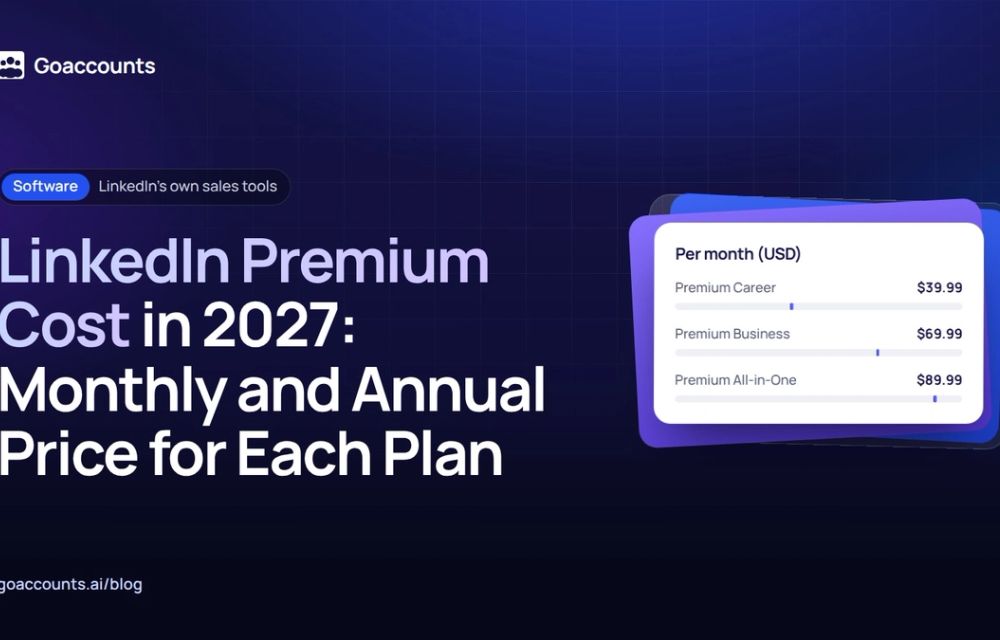
| Plan | List price / month (US) | InMail credits / month | Max you can bank (cap) |
|---|---|---|---|
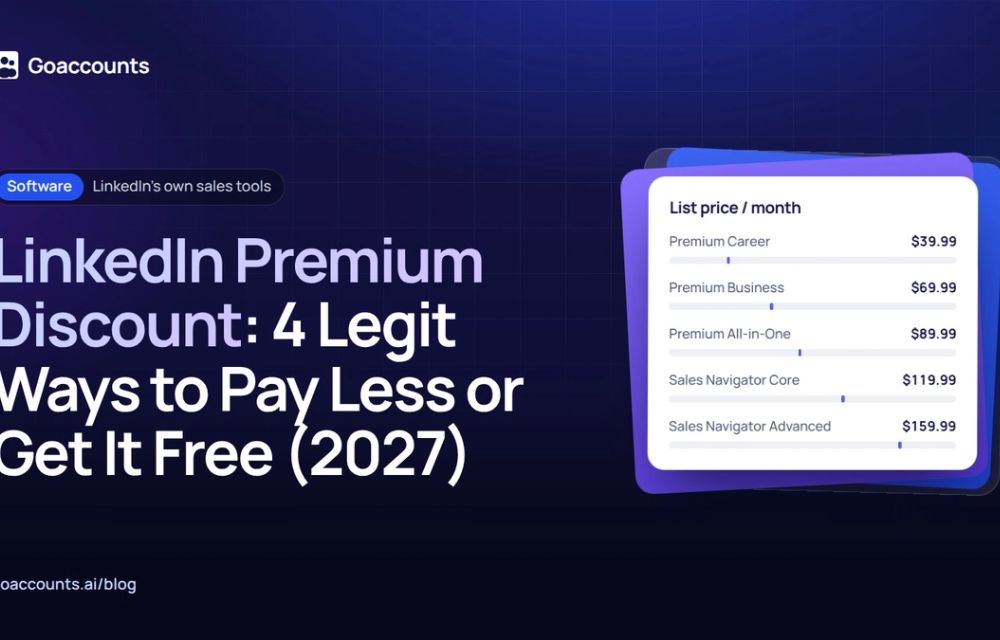
| Premium Career | $39.99 | 5 | 15 |
| Premium Business | $69.99 | 15 | 45 |
| Premium All-in-One | $89.99 (rolling out) | 30 | 90 |
| Sales Navigator Core | $119.99 | 50 | 150 |
| Sales Navigator Advanced | $159.99 | 50 | 150 |
| Recruiter Lite | No public monthly price | 30 | 120 |
A few things the table does not spell out. Premium All-in-One is still rolling out to select users, so you may not see it on your account yet. Recruiter Lite shows a "Try for $0" button and no public monthly price, but its InMail allotment is public: 30 a month, cap 120. Hiring Pro is a hiring product, not an outreach plan, and gives 5 InMails per job rather than a monthly pool.
LinkedIn's own page says, word for word, "We currently don't offer a subscription plan with unlimited InMail message credits." No plan is unlimited. If you have seen a tool or a seller promise unlimited InMails, LinkedIn's plans do not back that up.
Do LinkedIn InMail credits expire, roll over, or renew?
Short answer: they renew every month, they accumulate up to a cap, and LinkedIn's own InMail credits page does not say they expire after 90 days.
They renew monthly, but the date depends on the product. Premium credits renew on your sign-up anniversary day, not the 1st. LinkedIn's wording: "The InMail messages credit auto-renewal date is based on the date of your initial sign-up." Sales Navigator is different. Its credits "renew on the first day of every month, regardless of your billing cycle." If you have read that Sales Navigator refreshes on the last day of the month, that is wrong against LinkedIn's page. It is the first day.
They accumulate up to the cap, then stop. Unused credits roll forward only until you hit the plan's maximum (the right-hand column in the table above). Past that, new monthly credits do not add on top.
They do not "expire after 90 days." A lot of pages repeat this. LinkedIn's own InMail credits page says nothing about credits expiring. The only 90-day rule on that page is the credit-back window, which is a different thing entirely and is covered next. So the limit on how many you can hold is the accumulation cap, not an expiry timer.
How to get LinkedIn InMail credits back (the 90-day rule)
You do not ask LinkedIn to refund a credit. The system does it automatically. Every InMail that is accepted, declined or responded to within 90 days of being sent is credited back to your balance.
Here is what counts and what does not, in LinkedIn's own terms:
- A response within 90 days returns the credit. That includes an accept, a decline, or a direct reply.
- A Quick Reply counts as a response, so even a one-tap reply refunds the credit.
- A pending message, one that sits unanswered, is not counted as accepted or declined. No response in 90 days means no credit back.
- You cannot send another InMail to the same member until they respond to the first one.
- LinkedIn sends the recipient an automatic reminder about your InMail, no later than three days after you send it.
- If you cancel a Premium subscription, your InMail balance drops to zero.
So a credit is only truly spent when a message goes unanswered for 90 days. The way to get credits back is to write InMails people actually reply to.
The numbers back this up. LinkedIn's own recruiter data (May 2021 to April 2022) found InMails under 400 characters got responses about 22% above average, while ones over 1,200 characters ran 11% below, and individually sent messages beat bulk sends by roughly 15%. Open InMail reply rates sit around 8% in recent third-party campaign data, while messages to people you are already connected to reply closer to 24%. Short, personalised, individually sent InMails come back to you far more often, which means they refund their own credits. Connecting first, where you can, beats spending an InMail at all.
Can you buy more InMail credits?
LinkedIn publishes no standing price for buying extra standard Premium credits, and its InMail credits help page lists no option to purchase them. You may see blogs quoting a per-credit price or "blocks of 10" for Recruiter Lite. Those numbers are not on LinkedIn's page, so treat them as unverified.
Credits also do not move between products. They are not transferable when you upgrade, and Premium credits cannot be used on Sales Navigator or Recruiter. Each is a separate pool.
That leaves four honest ways to get more reach from InMail:
- Use your credits before they hit the cap, so you are not leaving banked credits unused.
- Write InMails that get replies, so the 90-day rule refunds them.
- Upgrade to a plan with a higher monthly allotment and a higher cap.
- Add more seats, each with its own allotment.
How to check your InMail credit balance
Your remaining InMail credits show inside your LinkedIn account, under your messaging and subscription settings for the Premium, Sales Navigator or Recruiter product you pay for. The exact menu differs a little by product, so check the settings for the specific seat you are on.
When the cap is the real limit: it's a seats question
No plan gives unlimited InMails. The most any single account sends is 50 a month on Sales Navigator, and even those stack only up to the cap. If 50 a month per profile is not enough, a pricier single plan does not fix it, because the ceiling is per account.
That makes volume a seats question, not a credit top-up. Each account you run carries its own plan and its own InMail allotment. A Sales Navigator Advanced add-on at $40 a month per rented account (LinkedIn list price $159.99) brings its own 50 InMail credits a month, on that account.
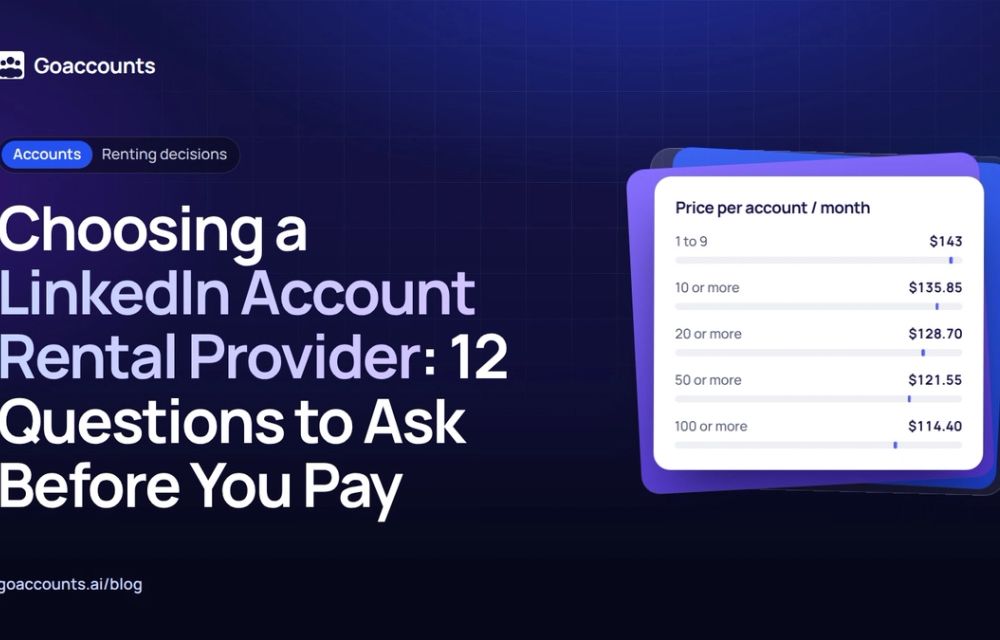
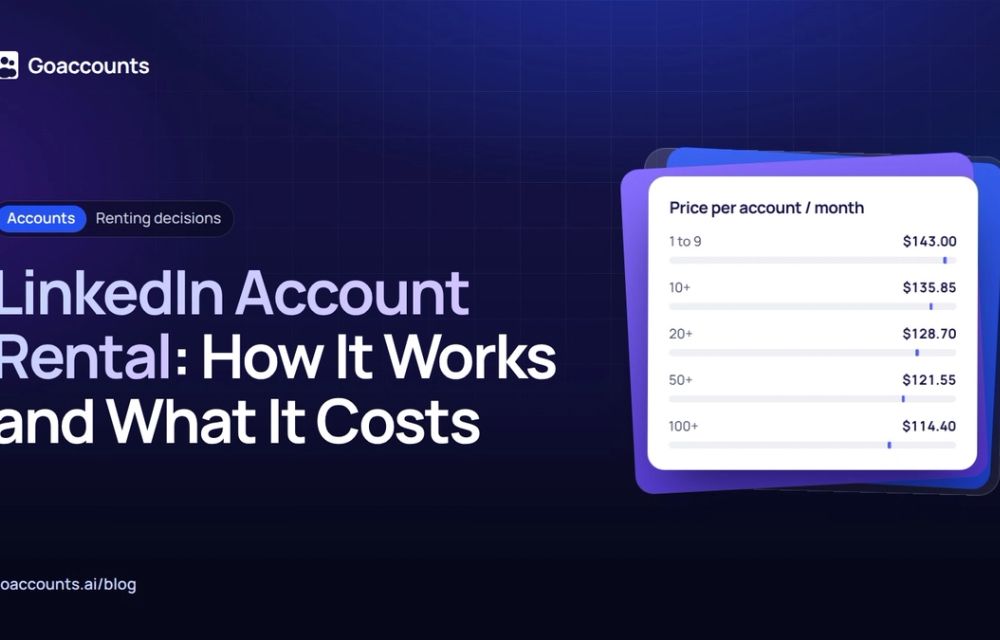
If you would rather not stack this on your own profile, GoAccounts rents LinkedIn accounts from $143 a month, each with its own dedicated proxy and browser profile. Add Sales Navigator Advanced for $40 a month per account, and an extra seat runs from $183 a month all-in with its own 50 InMails. If you are planning this across more than one profile, our guide on scaling outreach across more than one account walks through the setup, and the GoAccounts academy covers the rest.
Frequently asked questions
How many InMail credits do you get per month? It depends on the plan: Premium Career 5, Premium Business 15, Premium All-in-One 30, Sales Navigator (Core and Advanced) 50, and Recruiter Lite 30 a month.
Do LinkedIn InMail credits expire? LinkedIn's own InMail credits page does not say they expire after 90 days. Unused credits accumulate up to each plan's cap, and the cap is the real limit. The 90-day rule is the credit-back window, not an expiry clock.
Do InMail credits roll over? Yes, up to the cap. Unused credits carry into the next month until you reach your plan's maximum (15 to 150 depending on the plan). They do not stack past the cap.
How do you get an InMail credit back? It returns automatically when the recipient accepts, declines or replies within 90 days. A Quick Reply counts. A message that stays pending for 90 days does not come back. New or restricted accounts aside, this applies to every InMail you send.
Can you buy more InMail credits? LinkedIn publishes no price for buying extra standard Premium credits, and its InMail credits help page lists no option to purchase them. To get more, use them before the cap, let replies refund them, upgrade, or add seats.
Researched and drafted with AI assistance from our team's notes, and checked against LinkedIn's own InMail credits and plan help pages on November 16, 2026 by the GoAccounts Team.