How to Cancel LinkedIn Sales Navigator Without Losing Your Lead Lists
LinkedIn deletes your saved leads the moment you cancel Sales Navigator. Save your lead lists first, follow the exact Core and Advanced cancel steps, and see a cheaper way to keep the features.

Need accounts to run this playbook? Enquire Now
To cancel LinkedIn Sales Navigator without losing your lead lists, export or copy your lists first. LinkedIn removes your saved leads and saved accounts as soon as you cancel, and gives you no built-in way to save them. Then cancel through Settings & Privacy on Core, or the Admin Center on Advanced, and choose Cancel subscription. Your access runs to the end of your billing cycle.
The cancellation help pages walk you to the Cancel button and stop there. They skip the part that actually costs you: the lists, searches and notes you spent months building. This guide puts the data-rescue step first, then the exact cancel steps, then the honest options that cost less than cancelling outright.
Step 1: Decide whether cancelling is the right move
Cancelling makes sense if you have stopped prospecting on LinkedIn. If you are only trying to cut cost, a downgrade may keep the parts you use, which we cover below. And if the real problem is that one profile cannot carry the outreach volume you need, the fix is more seats.
If you'd rather not risk your own profile, sign up at GoAccounts and get aged, ID-verified LinkedIn accounts in 3 to 10 days, depending on how many accounts you need.
If cancelling is still the plan, work through the rest of this guide in order, starting with the data-rescue step.
Step 2: Save your lead lists before you cancel (LinkedIn won't)
This is the step the cancellation pages skip. On its Considerations before you cancel page, LinkedIn says your messages, saved leads and saved accounts are removed as soon as you cancel, and that you currently have no option to save that data. So the only honest way to keep your lists is to copy them out before you confirm the cancellation.
There is no native one-click export of Sales Navigator lead lists. LinkedIn gives you no "download all my leads" button, so the rescue is manual, or it runs through a tool you already use.
As operators who stand up and retire LinkedIn seats at volume, this is the exact pre-close checklist we run before any seat is cancelled :
- Copy each lead list and account list into a spreadsheet or your CRM: names, companies, titles, and your own notes and tags.
- Save the URL and the filter set of every saved search. Searches do not carry over, so without the filters you are rebuilding them from memory.
- If you already run a CRM sync or an export tool, push the leads out through it before you cancel. These are third-party tools outside LinkedIn, and automated extraction can put an account at risk under LinkedIn's terms, so weigh that yourself.
- Confirm who the purchaser admin is. On Sales Navigator Advanced, only that person can cancel.
- Only then confirm the cancellation.
One trap to avoid: the personal "Download your data" archive under Settings & Privacy is not the same thing. That archive returns your personal LinkedIn profile and connection data. It does not include your Sales Navigator saved leads, account lists, notes or saved searches, which live inside the Sales Navigator workspace you are closing.
What happens when you cancel LinkedIn Sales Navigator?
When you cancel LinkedIn Sales Navigator, the subscription runs to the end of your current billing cycle, but LinkedIn says your saved leads and saved accounts are removed as soon as you cancel. Both timings sit on LinkedIn's own page, and the company does not reconcile them, so treat "as soon as you cancel" as the moment your data is at risk and export before you confirm.
Here is what LinkedIn states you keep and lose:
| What you keep | What you lose |
|---|---|
| Your free LinkedIn account and profile | Saved leads and saved accounts |
| Your connections and network | The lead lists, account lists and saved searches you built |
| Your personal profile data and activity | Your notes, tags and InMail credits |
| Nothing else from the paid subscription | Access to messages you sent from Sales Navigator |
A few specifics worth knowing:
- Re-subscribing does not bring your data back. LinkedIn says that if you buy Sales Navigator again later, you start over with a new account and none of the previous data is available.
- Your InMail credits do not move to your personal LinkedIn account.
- Cancelling Sales Navigator does not close or affect your free LinkedIn account.
- After you cancel, the commercial-use search limit returns to the basic free-tier limit, so your search drops back to the free caps.
- If LinkedIn's prices have risen since you subscribed, you lose your current pricing when you cancel, so re-subscribing later could cost more.
Step 3: Cancel Sales Navigator Core or Advanced
The menu path depends on which plan you have. Both routes end in the same place: Purchases, then Cancel subscription. You can do it online without contacting a sales or support rep.
Cancel Sales Navigator Core
- Sign in to your LinkedIn account.
- Click your photo at the top right, then Settings & Privacy.
- Open Account Preferences in the left menu, then scroll to Subscriptions & payments.
- Click Manage Premium account, then Manage Subscription. The LinkedIn Admin Center opens.
- Open Purchases in the left menu and select your subscription.
- In Actions at the top, choose Cancel free trial or Cancel subscription, and follow the on-screen steps.
Expected result: LinkedIn confirms the cancellation and shows the date your access ends, which is the end of your current billing cycle. Worked example: a solo founder on Core signs in, reaches the Admin Center through Manage Subscription, and cancels in a few clicks, because the lists were already saved in Step 2.
Cancel Sales Navigator Advanced (and who can cancel)
- Sign in to Sales Navigator.
- Click Admin, then Admin Center.
- Open Purchases in the left menu, go to the Active tab, and select your subscription.
- Click Actions, choose Cancel free trial or Cancel subscription, and follow the steps.
Only a purchaser admin can cancel a Sales Navigator Advanced subscription online. If you are on a seat your employer bought, you cannot cancel it yourself. Contact your admin and ask to be removed from the account.
Two other cases:
- Bought through the iOS app: you cancel and request any refund through Apple, not LinkedIn.
- Bought through a LinkedIn sales rep or account manager: you will usually cancel through that rep.
Step 4: Handle the free trial, refund, and billing end date
If you are on a free trial, cancel it before it renews using the same steps, choosing Cancel free trial in the Actions menu. Cancelling stops the next charge. It does not usually end your access early, which runs to the end of the trial or billing period.
On refunds, LinkedIn's wording is careful, so do not count on one. The refund policy says a Premium subscription, which includes Sales Navigator, may be refundable within 7 days from the date it is charged, provided there has been no Premium usage in that time. Read that as "may be," not "will be." If you bought through the iOS app, the refund goes through Apple. Refund rules also differ by region, so check the terms where you are.
Either way, your features expire at the end of your billing cycle, so there is no benefit to cancelling on the first day of a cycle over the last.
Cheaper than cancelling: downgrade Advanced to Core
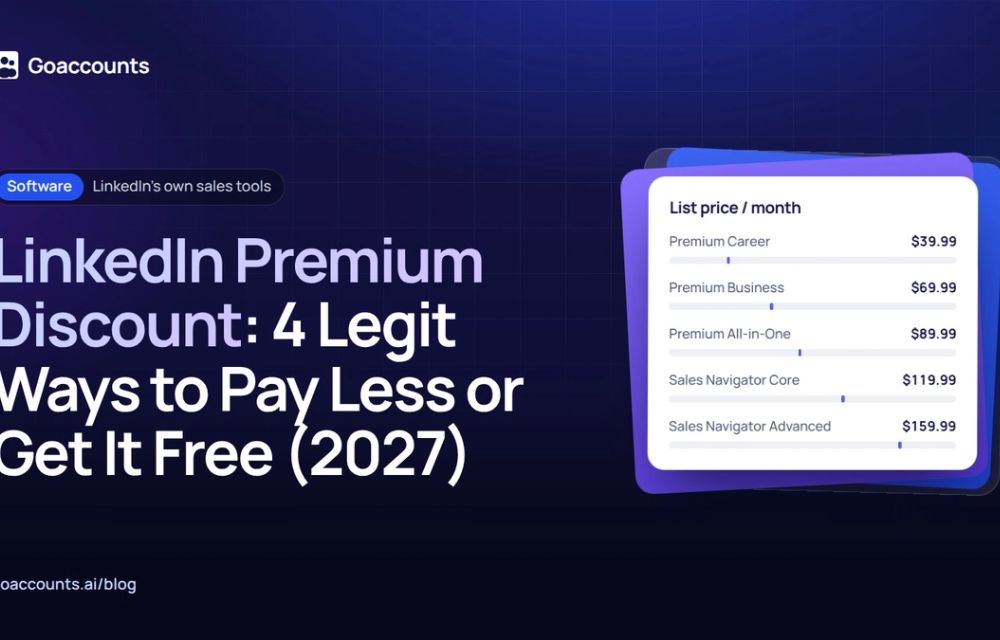
If the reason you are cancelling is cost, there is a middle option. Sales Navigator Core lists at $119.99 a month per seat and Advanced lists at $159.99 a month per seat, so moving from Advanced down to Core saves $40 per seat each month. Core keeps the search, the lead filters and the 50 InMails a month that most solo prospectors actually use. The main reason to pay the extra $40 for Advanced is its team features, such as TeamLink and admin controls.
One caution. LinkedIn's "Considerations" page describes what happens when you cancel, not what happens when you downgrade, and there is no LinkedIn page confirming that a downgrade keeps your saved leads. So export your lists first anyway, then downgrade. Protect your data yourself. The plan change will not do it for you.
The real question: do you need the plan, or more seats?
No Sales Navigator tier raises LinkedIn's weekly limit on connection requests. LinkedIn doesn't publish an exact figure for it, but operators commonly hit a ceiling of roughly 100 to 150 invitations per profile per week. Sales Navigator buys you search, lead filters and 50 InMails a month. It does not lift that invite cap. So if volume is the thing pushing you to cancel, a pricier plan was never going to fix it. One profile can only send so much. The answer is more seats.
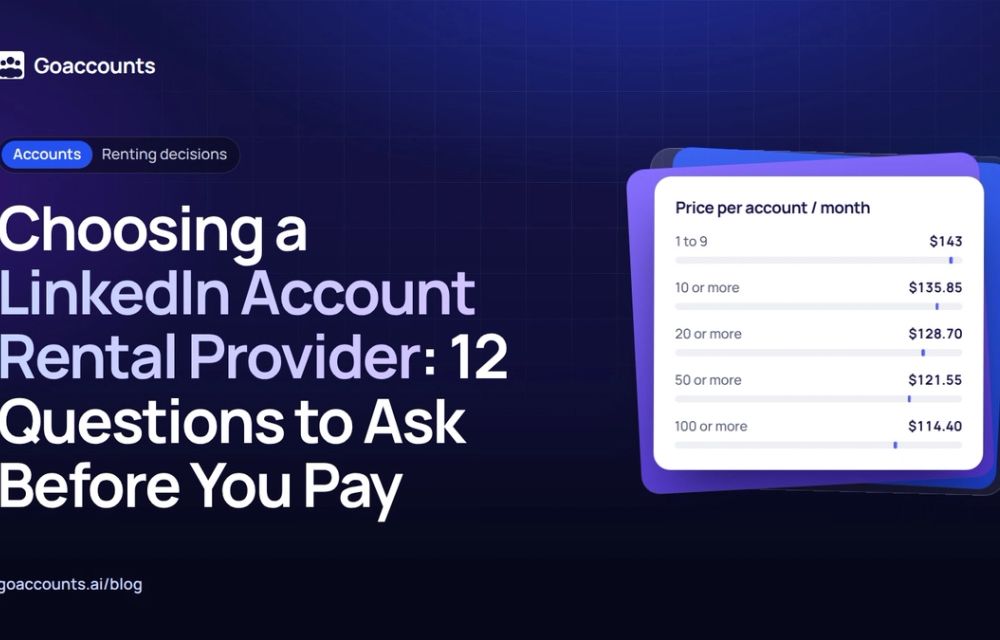
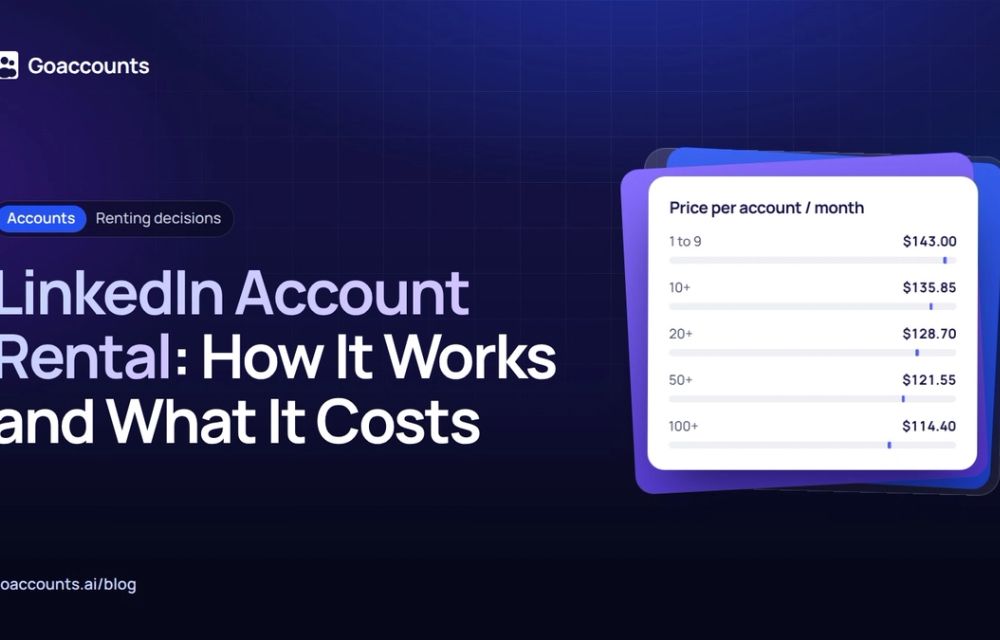
Teams that run real volume solve it by adding accounts, each with its own profile, proxy and browser profile, rather than paying more for a single seat that is already at its ceiling. GoAccounts rents LinkedIn accounts from $143 a month, each with a dedicated static ISP proxy and its own browser profile, and you can add Sales Navigator Advanced to a rented account for $40 a month, against LinkedIn's list price of $159.99. That puts a fully equipped extra seat at about $183 a month. You can see the current numbers on the GoAccounts pricing page. If you are weighing this, our guide to scaling outreach across more than one account walks through the setup, and real vs fabricated accounts covers which account type fits which job.
The $40 add-on attaches to an additional rented account, not to the seat you already pay for. It is cheaper only if you are adding accounts to scale anyway.
Frequently asked questions
Will I lose my saved leads if I cancel Sales Navigator? Yes, unless you export them first. LinkedIn removes your saved leads and saved accounts as soon as you cancel and offers no built-in way to save them. Copy your lists out before you confirm.
Can I export my Sales Navigator leads before cancelling? There is no native bulk export. Copy each lead list and account list into a spreadsheet or CRM by hand, or push them out through a CRM sync or export tool you already use. Save your saved-search URLs and filters too.
Who can cancel Sales Navigator Advanced? Only a purchaser admin can cancel an Advanced subscription online. If your employer bought your seat, ask your admin to remove you from the account.
Can I get a refund on Sales Navigator? Maybe. LinkedIn says a subscription may be refundable within 7 days of the charge if there has been no Premium usage. iOS purchases are refunded through Apple, and the rules differ by region.
Does cancelling Sales Navigator close my LinkedIn account? No. Cancelling only ends the paid subscription. Your free LinkedIn account, profile and connections are unaffected.
Whatever you decide, save your lists before you touch the Cancel button. That one step is the difference between a clean exit and starting from scratch. If an account of yours has run into trouble rather than just cost, what to do if an account is restricted is the better place to start, and the GoAccounts academy covers running accounts at volume.
Researched and drafted with AI assistance from our team's notes, and checked against LinkedIn's own help and billing pages on 16 November 2026 by the GoAccounts Team.